

Blocks and AI assistants
On this page
Build dashboards from your warehouse data with Blocks, share them with your team or your client, and connect an AI assistant so it can read your data and draft pages for you to review.
Create a Blocks page
A Blocks page is a dashboard built on your gold tables: validated queries, charts and notes on one page.
- Open Blocks in the sidebar. The pages you can open are listed under it as a tree, and you land on the first one.
- Click the + next to Blocks to add a page. Use the ... menu on a page in the tree to Rename it, Change icon, Add subpage or Delete it. Drag a page to reorder it or move it under another one.
- If you have no pages yet, the page says Create your first page.
- On a page, Edit layout lets you move and resize its blocks. Done leaves edit mode, and while you edit you may also see Undo, Redo and Discard changes, when they are available for your organization.
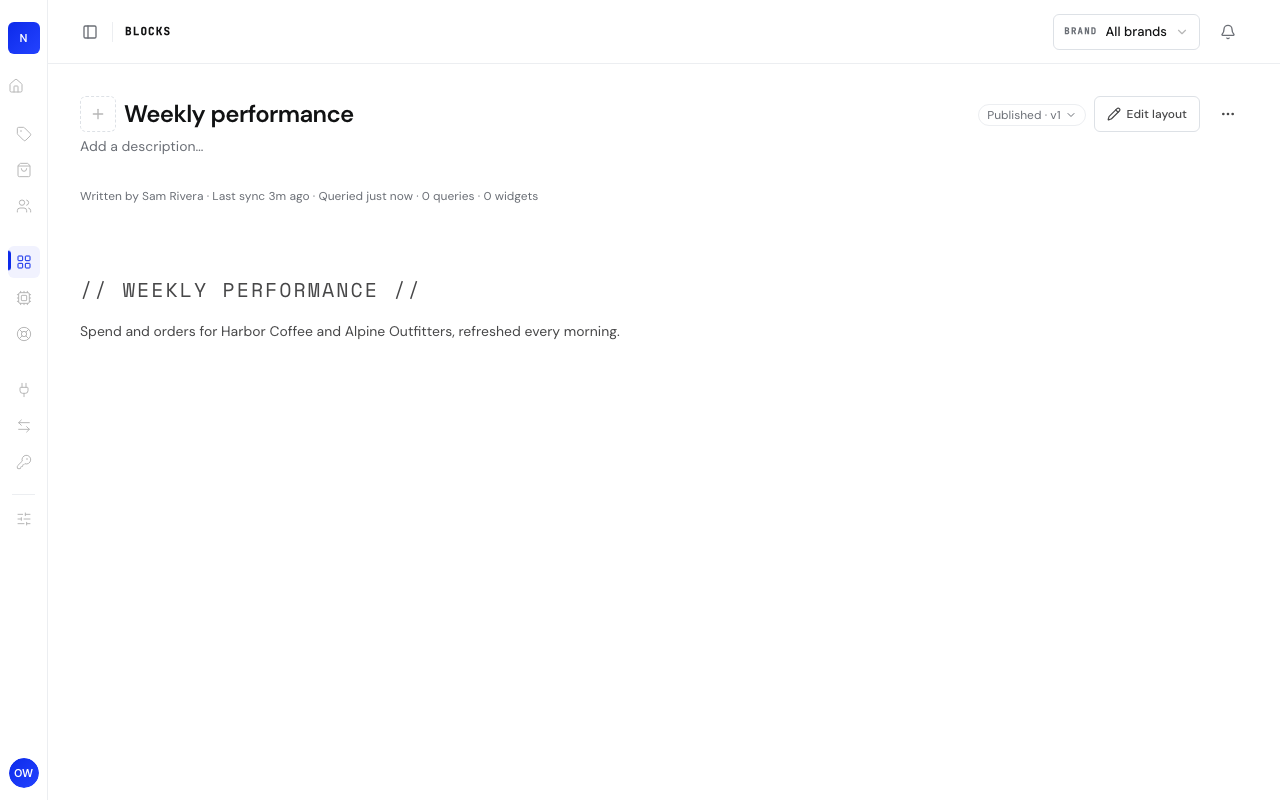
The screenshots in this guide show the portal in English.
Publish and version a page
A page has a published version, which is the one people see, and can have a newer draft on top of it.
- A page that has never been published is a Draft. Click Publish in the toolbar to make it live. The badge then reads Published with a version number.
- When a draft is newer than the published version, a Published and Draft switch appears at the top. Use it to check the draft before you publish it. Only people who can edit the page see it.
- Publishing is only for people with Full access to the page. Anyone with Can edit can change the layout but not publish.
- Open the ... menu and choose Lock page to stop edits from people and agents. Unlock page reverses it.
Share a page
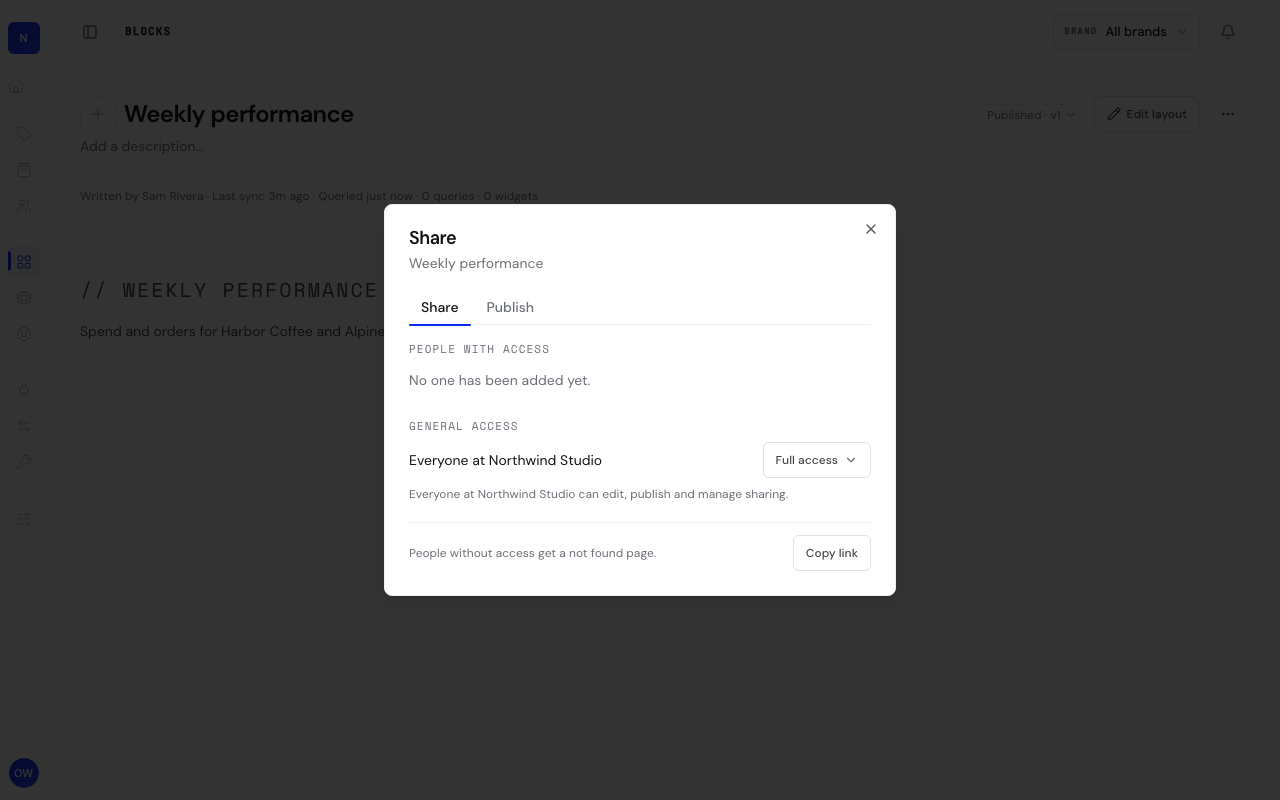
- Open the ... menu on the page and choose Share.
- On the Share tab, type an email under Add people, pick Can view, Can edit or Full access, and click Invite. People with access lists who is on the page.
- General access sets what everyone in your organization can do. Set it to no access to make the page private, which shows a lock in the sidebar.
- On the Publish tab, turn on Public link to give anyone with the link a read-only view of the published version. Turn it off to stop sharing. A link that was turned off, expired or never existed shows "This link is invalid, revoked, or expired."
Connect an AI assistant
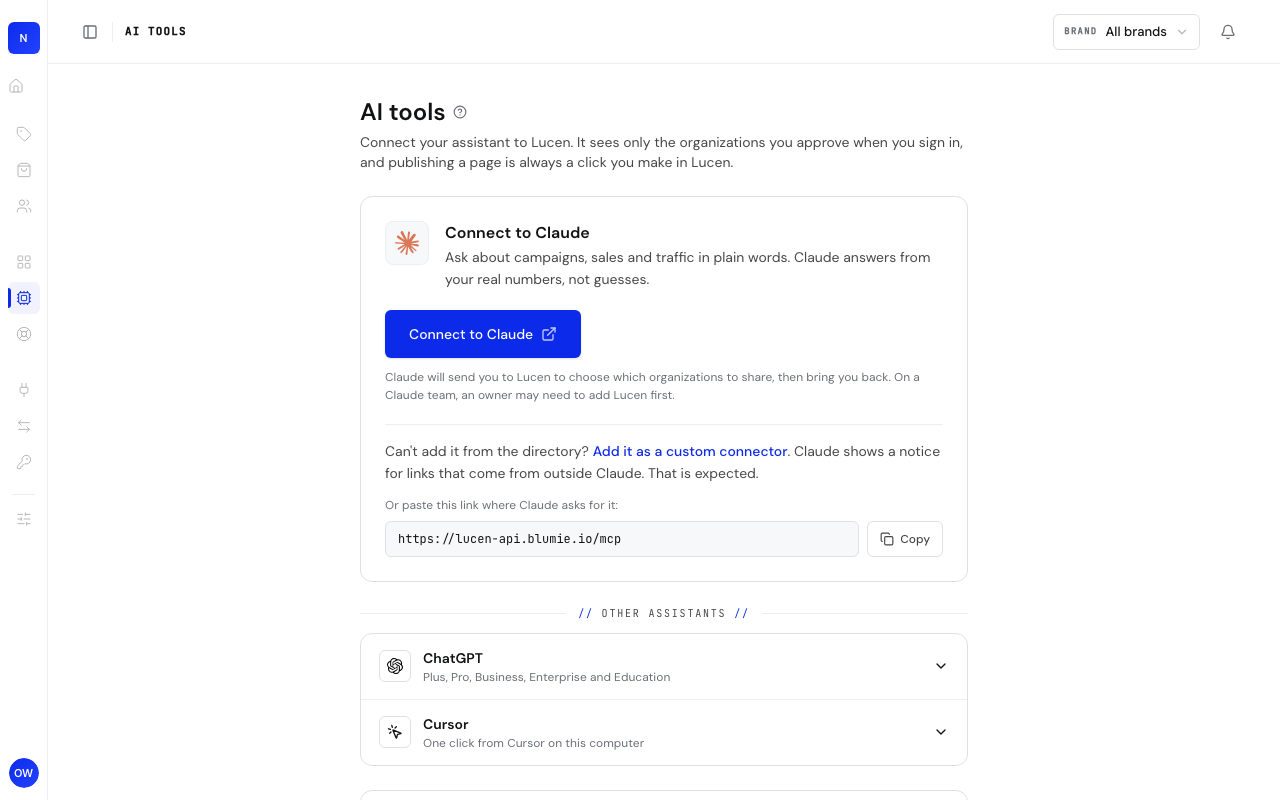
- Open AI tools in the sidebar.
- Under Connect to Claude, click Connect to Claude. Claude's directory page for Lucen opens. Adding it there sends you to sign in to Lucen, choose which organizations to share, and then back to Claude.
- For other assistants, open ChatGPT or Cursor under Other assistants and follow the steps shown. For developers has the commands and config for terminal and editor clients.
- If you cannot add it from the directory, use Add it as a custom connector or paste the server link into your assistant where it asks for one.
The step by step setup for each client, the list of tools the assistant can use and what each one does are on the MCP connector page.
Troubleshooting
A page I drafted from my assistant is not visible to my client.Drafts are not published. Open the page, check the draft, and click Publish. Then share it.
I cannot see Publish or Share settings.They depend on your access to the page. Publish and the sharing controls need Full access, and Edit layout needs Can edit or more.
The assistant stopped answering.Your plan can cap the number of assistant questions per month. When billing is on, AI tools shows an AI agent (MCP) queries meter and a notice as you approach the limit. See your plan under Settings, Plan & billing.
The assistant cannot find my data.It reads your warehouse, so the account must be synced first. Check Data transfers for failed runs.