

Connect sources and follow your syncs
On this page
Connect your ad platforms and stores, group their accounts by brand, and follow every sync from the raw data to the tables your reports read. Lucen writes everything into your warehouse.
Connect a source
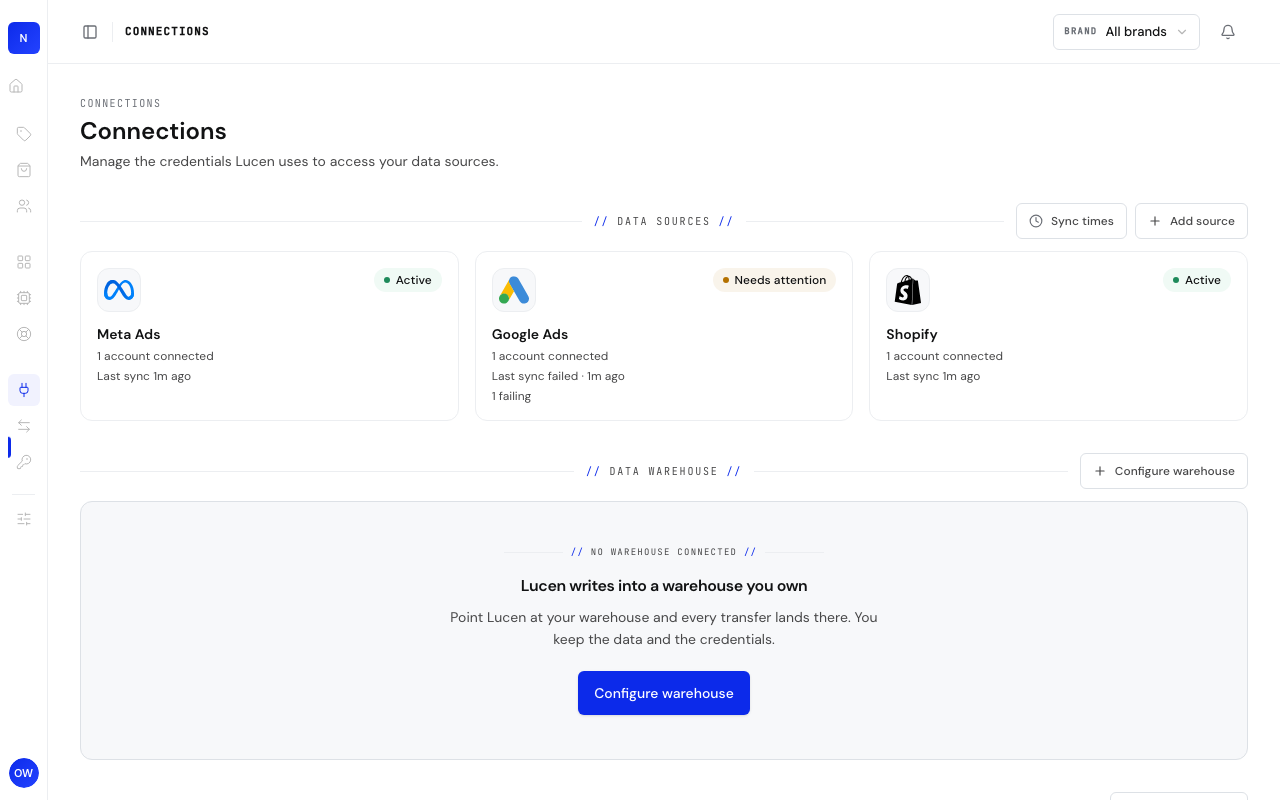
- Open Connections in the sidebar. Each connected platform is one card under Data sources, with its account count and the result of the last sync.
- Click Add source. The panel is titled Add a data source: pick a platform and enter its credentials, and Lucen tests the connection before it saves.
- For a platform that uses a login, you are sent to the platform to approve access and then back to Lucen. If the platform lists several accounts, choose the ones to sync.
- Open the platform's card to see its accounts. Add account connects another one, and the ... menu on a row has Rename, Test connection and Disconnect.
The screenshots in this guide show the portal in English.
Group accounts by brand
A brand is one of your end clients. An agency has many, a single-brand business has one and never sees the brand controls.
- Open Brands under Operate in the sidebar. The table lists each brand with its spend, budget and pacing.
- Click New brand to create one. Open a brand to rename it, set its website, or delete it. Its Accounts tab lists the accounts counted in it.
- When Lucen cannot place an account with confidence, a banner appears with Review matches. Lucen suggests a brand from the account name, store domain and currency, and the account counts in a brand only after you assign it.
- To move an account later, select it on the platform's page in Connections and choose Move to brand. Reconnecting an account never moves it.
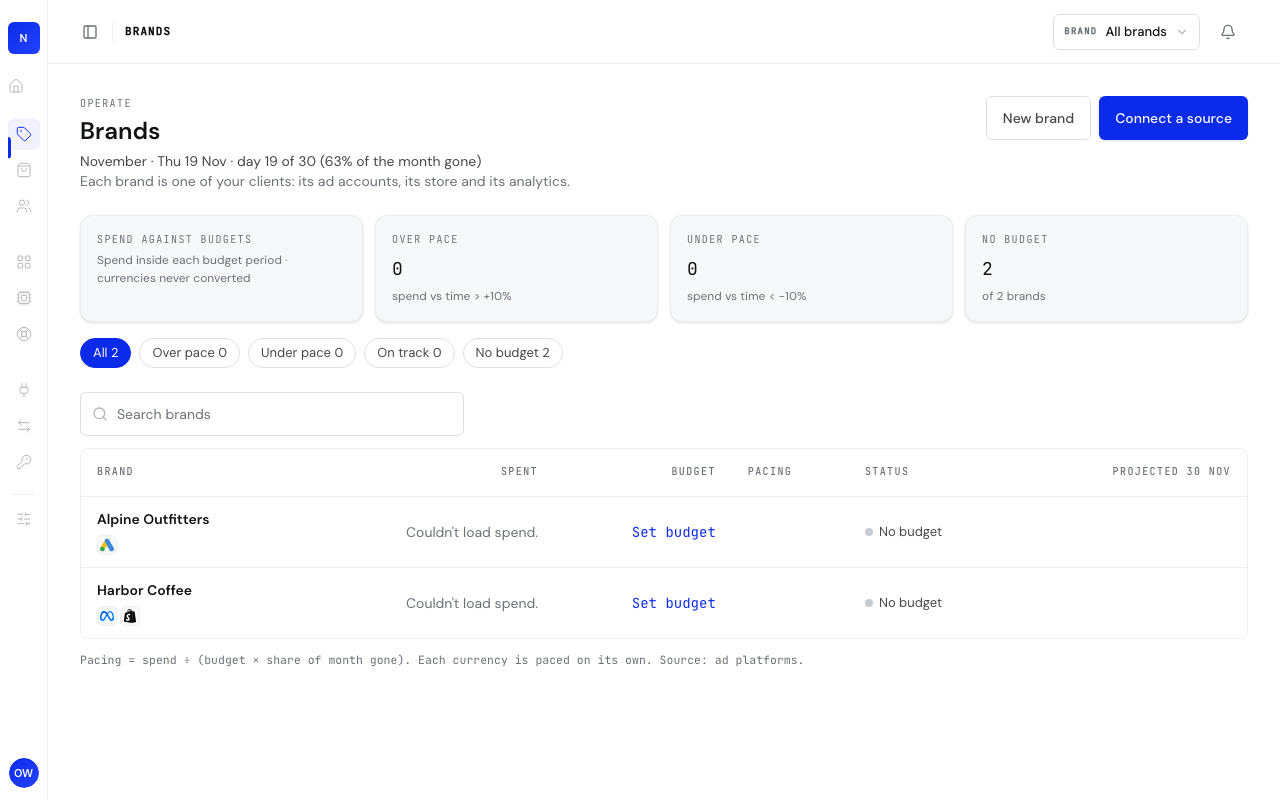
With two or more brands, a Brand switcher appears in the top bar. It filters which accounts the cards and tables count.
Follow your syncs
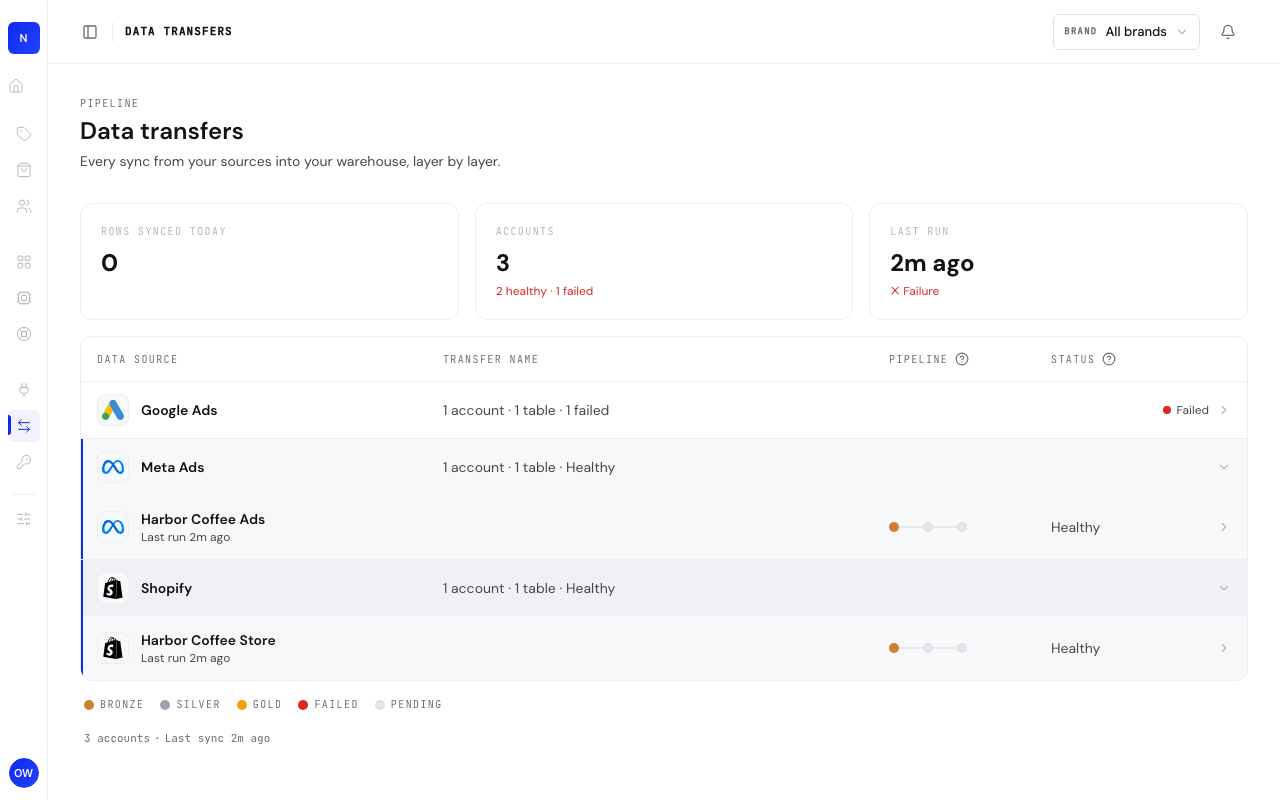
- Open Data transfers in the sidebar. The top cards show rows synced today, how many accounts are healthy or failed, and when the last run happened.
- Expand a platform to see its accounts, then an account to see its tables. Each row shows three dots for the steps of the pipeline and a status. Failed rows open first.
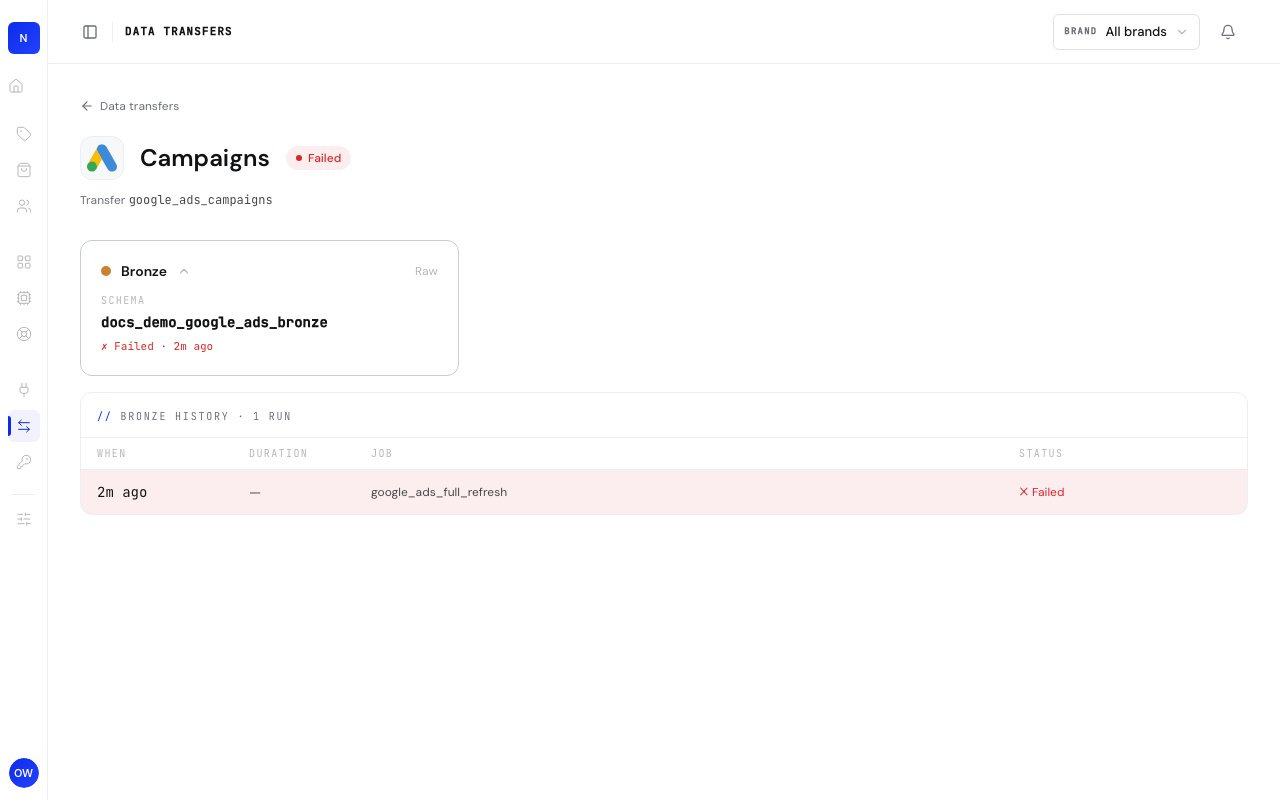
- Click a table to open its page. The Bronze, Silver and Gold cards show how far the latest data got: bronze is the raw data as the platform sent it, silver is cleaned, and gold is the ready-to-use tables that Blocks, exports and AI tools read.
- Click a layer card to open its run history: when each run happened, how long it took, which job ran and whether it succeeded. A failed run points at the step that broke.
By default most sources sync daily at 07:00 Buenos Aires time (UTC-3). Stores such as Shopify and Tiendanube, and Mailchimp, sync at 06:00. Each platform's page shows its time. Your plan sets how often a source can sync, and you can choose the times, as described below. When you connect an account, its history loads on its own, so there is nothing to start by hand. When the first data is ready in your warehouse, the organization owners get one email per organization, not one per account. The Sync finished (backfills only) preference in Settings under Notifications is narrower: it notifies the organization owners (or the member who asked for it) when a backfill run by the Lucen team finishes. It does not announce the first load.
Choose sync times
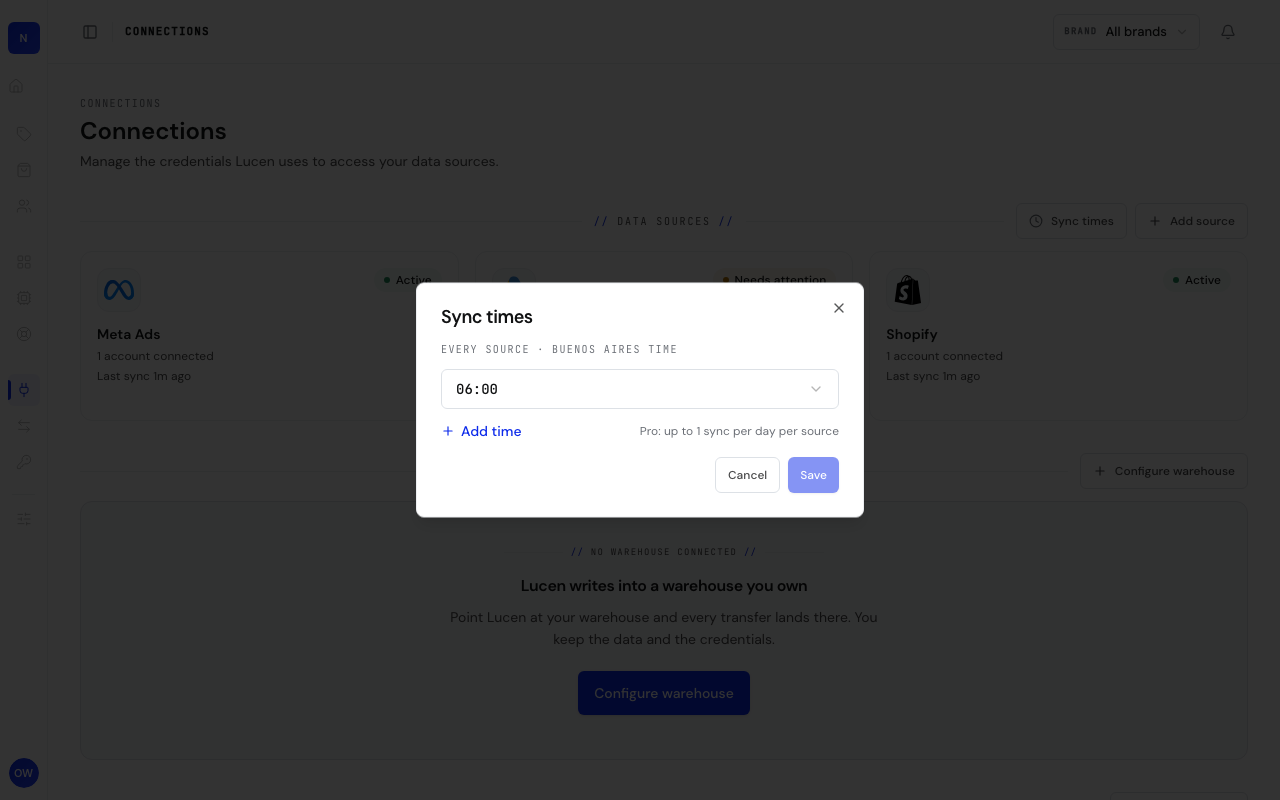
- On Connections, click Sync times next to Add source to set the times that every source follows. The button appears once at least one source is connected. If you do not see it, sync times are not turned on for your organization yet.
- On a platform's page, the phrase under its name, such as Syncs daily at 07:00, opens the times for that platform only.
- Owners can change the times. Pick a time for each sync, click Add time for another one, remove one you no longer want, and click Save. The note next to the list says how many syncs your plan allows. At the limit, Add time gives way to that note, with an upgrade option when a higher plan would allow more.
- A platform can keep its own times. In its dialog, Use the shared times puts it back on the shared ones. In the dialog on Connections, Remove shared times sends every source back to its usual time.
- Members see the times read only, with the next runs, and a note that owners can change them. A time your plan or the platform's daily limit cannot run shows as Paused.
When a sync fails
Accounts that need attention are marked on the platform's card and on its page.
- On Connections, look for a card marked Needs attention. It counts accounts that are not loading and accounts that need to be reconnected.
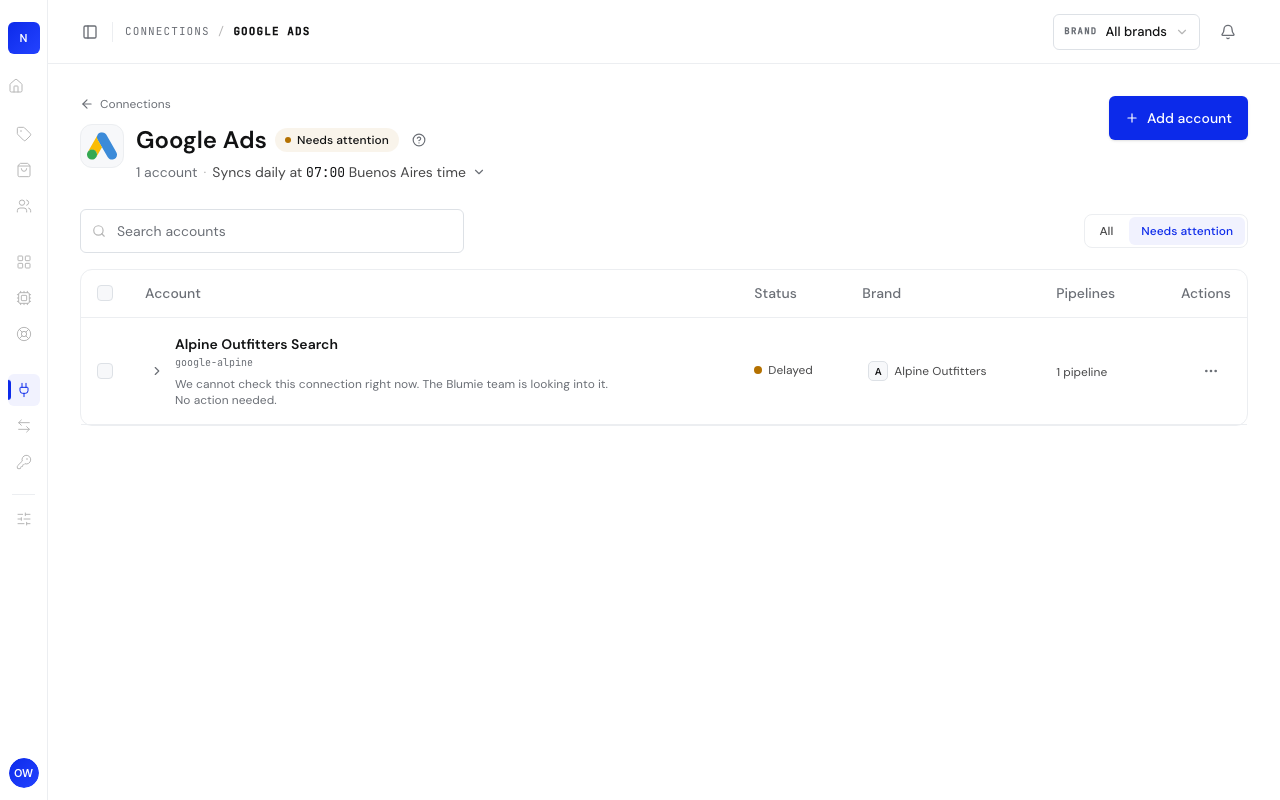
- Open the card and choose Needs attention next to All to list only those accounts.
- If the row has a Reconnect button, the login Lucen uses stopped working, often after a password change. Click it, approve access again, and the next sync confirms that it loads.
- If the row says Delayed and No action needed, the platform did not answer or the credentials are managed by the Lucen team. Nothing is red and there is no button, because there is nothing for you to fix. The team is looking into it.
Troubleshooting
An account says Not loading.Lucen can read the connection but not this account. The row shows the reason and when it started. Reconnect and make sure the login still has access to it.
An account says Checking.You reconnected it, and the next sync confirms that it loads. There is nothing to do until then.
A new account is not counted in any brand.It is waiting for a brand. Open Review matches from Brands and assign it.
Data looks a day behind.Reports read the gold tables, which are rebuilt after each scheduled sync. Open the table in Data transfers to see when the last run finished, and check the platform's Sync times to see when the next one is due.